NevTan Engage

Features

Email MarketingSMS MarketingAutomations

Solutions

eCommerceSaaS & AppsB2B Lead GenAgencies

Resources

BlogHelp CenterDocumentationEmail TemplatesAPIFAQs

Company

AboutPricingContact

Legal

Data Processing AgreementSubprocessor ListAI & Data Usage PolicySecurity & Compliance

© 2026 NevTan Engage. All rights reserved.

Cookie Policy | Terms and Conditions | Privacy Policy

Skip to main content

Channels & Automation

Email Marketing

Beautiful campaigns that convert

SMS Marketing

Reach customers instantly

Automations

Visual drag-and-drop workflows

By Industry

eCommerce

Boost sales & reduce cart abandonment

SaaS & Apps

Onboard & retain users at scale

B2B Lead Gen

Nurture leads to conversion

Agencies

White-label for your clients

Plans & Pricing

Pricing Plans

Simple, transparent pricing

Learn & Build

Blog

Marketing tips and best practices

Email Marketing Templates

Ready-to-use campaign layouts

Documentation

Guides for every feature in Engage

API

Build custom integrations

About Us

Contact Us

LoginStart Free Trial(No card)

Getting started

  • Introduction
  • Create your account
  • Signing in
  • Your dashboard & navigation

Contacts

  • Contacts & profiles
  • Lists
  • Importing contacts
  • Segments
  • Suppression list

Campaigns

  • Campaigns overview
  • Create & send a campaign
  • Reading a campaign's results

Templates

  • Template library
  • Create with AI
  • The template editor
  • Template approval

Automations

  • Built-in flows
  • Custom flows

Analytics

  • Contact Growth
  • Campaign Reports
  • Automation Reports
  • Metrics glossary

Integrations

  • Webhooks

Account & billing

  • Your profile
  • Custom sending domains
  • Plans & pricing
  • Billing, usage & invoices
  • Team & roles

Administration

  • Admin overview
  • Campaign & template review
  • Customers & packages

Documentation/Templates

Create with AI

Generate a design from a description, then refine it in plain English.

Create with AI builds a complete email design from a plain-English description — then lets you adjust it by describing the change rather than editing blocks by hand.

Generate a template

1

Click Create with AI

It's at the top right of the Templates page.

2

Describe what you want

On the Generate tab, describe the email in the box (up to 800 characters).

3

Click GENERATE TEMPLATE

AI builds the design and loads it into the editor.

Example prompt:

prompt
Welcome email for a SaaS app with a blue theme, headline,
short intro paragraph, and a Get Started button
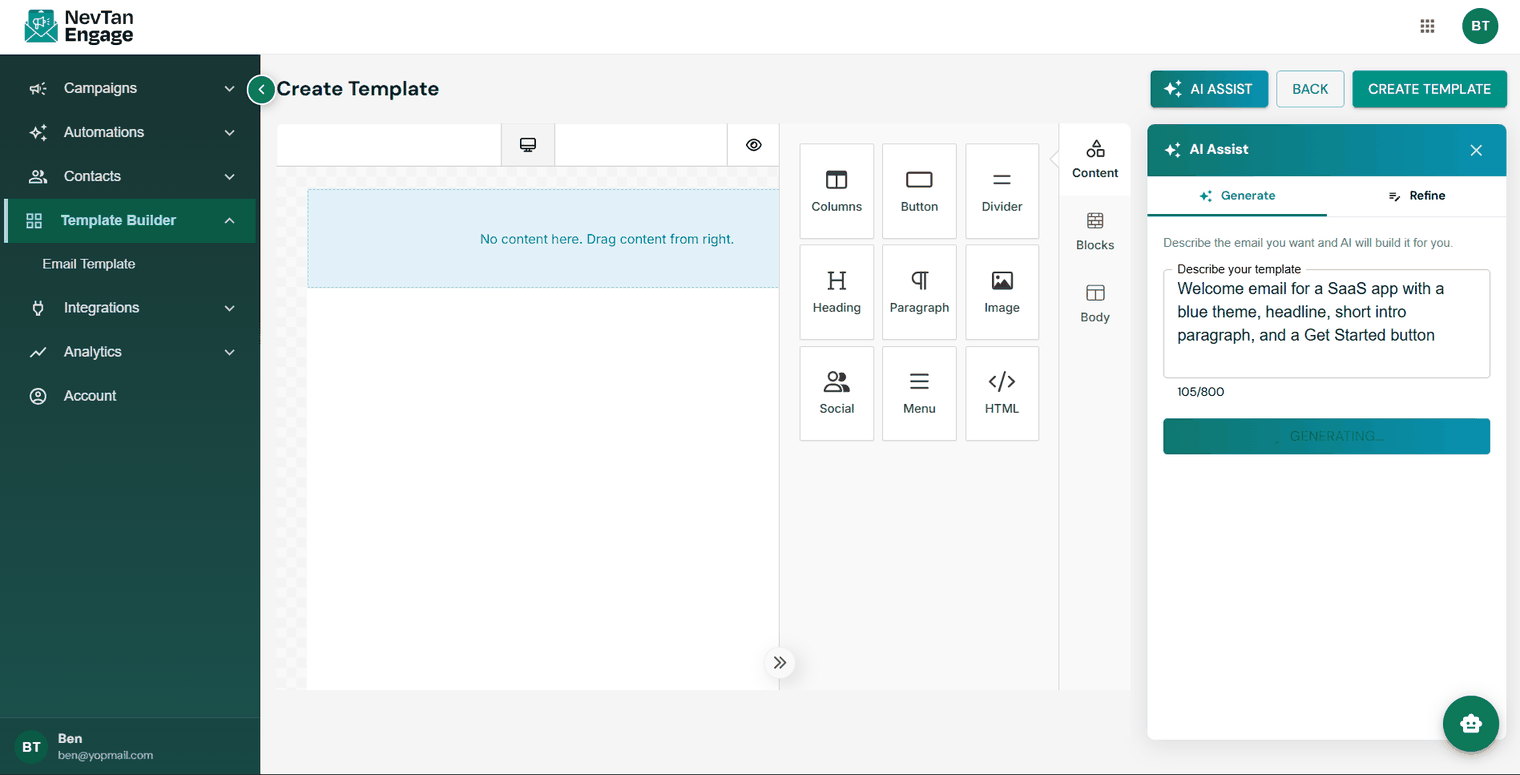
The AI template Generate tab

Describe the email you want

Refine it

Not quite right? Switch to the Refine tab and describe what to change. AI reads the current editor content and applies your instructions.

prompt
Make the header background dark blue, change the CTA button
to red, and add a footer with contact info
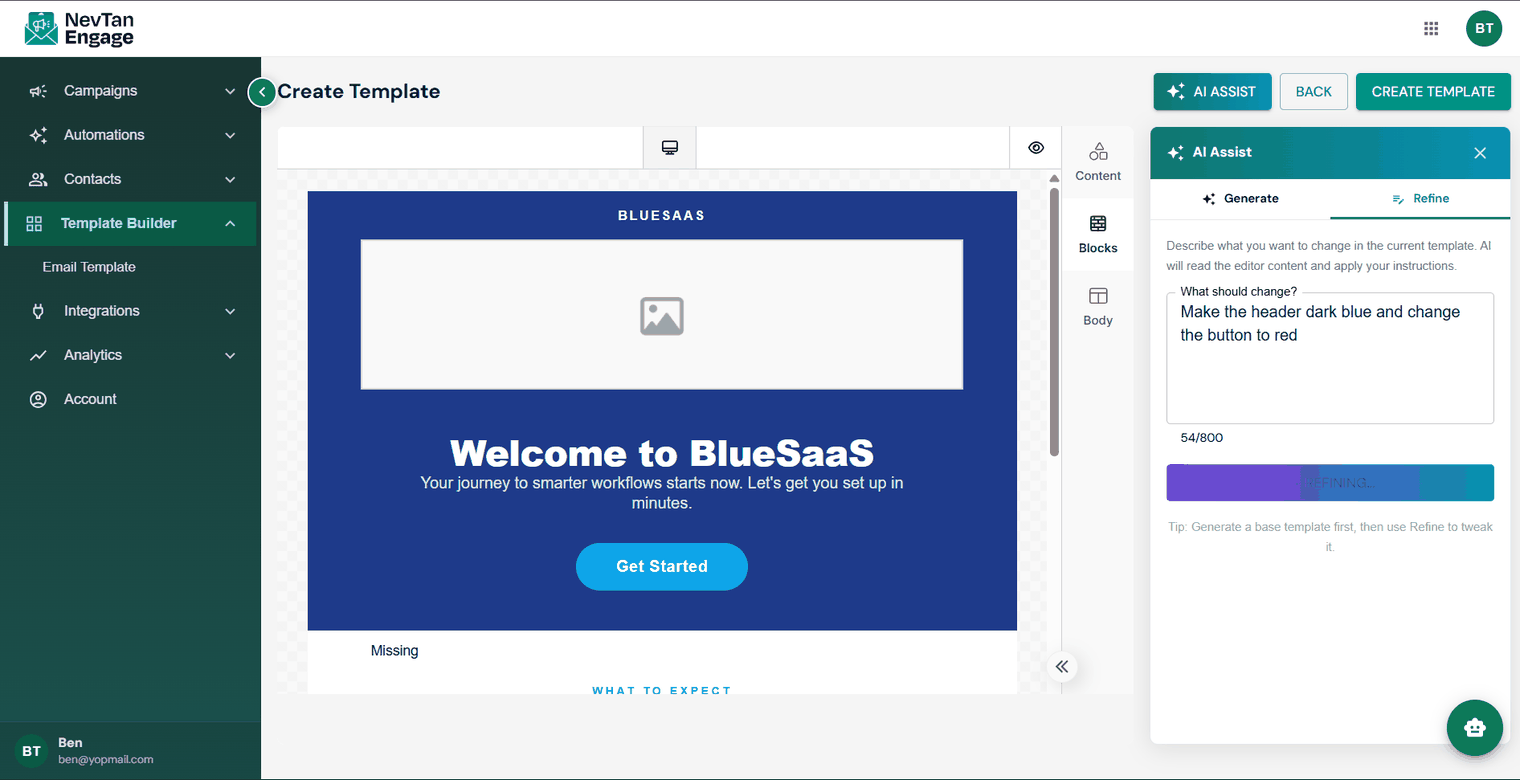
The AI template Refine tab

Refine by describing the change

💡

Generate a base template first, then use Refine to tweak it. That works far better than trying to describe everything perfectly in a single prompt.

Writing good prompts

IncludeExample
Purpose"Abandoned cart reminder"
Tone"friendly and informal" / "formal and concise"
Brand colours"dark green and cream"
Structure"headline, two short paragraphs, one button"
Call to action"a Complete your order button"

Save it

When you're happy, click CREATE TEMPLATE to save it into your library. From there it behaves like any other template — editable, reusable, and subject to approval.

ℹ️

Always read what AI produces before sending it. Check the copy, the links, and the offer — you're accountable for what lands in your customers' inboxes.

Previous

Template library

Next

The template editor

Still need a hand?

Our support team usually replies within one business day.

Contact support

On this page

  • Generate a template
  • Refine it
  • Writing good prompts
  • Save it