
NevTan Engage

Features

Email MarketingSMS MarketingAutomations

Solutions

eCommerceSaaS & AppsB2B Lead GenAgencies

Resources

BlogHelp CenterDocumentationEmail TemplatesAPIFAQs

Company

AboutPricingContact

Legal

Data Processing AgreementSubprocessor ListAI & Data Usage PolicySecurity & Compliance

© 2026 NevTan Engage. All rights reserved.

Cookie Policy | Terms and Conditions | Privacy Policy

Skip to main content

Channels & Automation

Email Marketing

Beautiful campaigns that convert

SMS Marketing

Reach customers instantly

Automations

Visual drag-and-drop workflows

By Industry

eCommerce

Boost sales & reduce cart abandonment

SaaS & Apps

Onboard & retain users at scale

B2B Lead Gen

Nurture leads to conversion

Agencies

White-label for your clients

Plans & Pricing

Pricing Plans

Simple, transparent pricing

Learn & Build

Blog

Marketing tips and best practices

Email Marketing Templates

Ready-to-use campaign layouts

Documentation

Guides for every feature in Engage

API

Build custom integrations

About Us

Contact Us

LoginStart Free Trial(No card)

Getting started

  • Introduction
  • Create your account
  • Signing in
  • Your dashboard & navigation

Contacts

  • Contacts & profiles
  • Lists
  • Importing contacts
  • Segments
  • Suppression list

Campaigns

  • Campaigns overview
  • Create & send a campaign
  • Reading a campaign's results

Templates

  • Template library
  • Create with AI
  • The template editor
  • Template approval

Automations

  • Built-in flows
  • Custom flows

Analytics

  • Contact Growth
  • Campaign Reports
  • Automation Reports
  • Metrics glossary

Integrations

  • Webhooks

Account & billing

  • Your profile
  • Custom sending domains
  • Plans & pricing
  • Billing, usage & invoices
  • Team & roles

Administration

  • Admin overview
  • Campaign & template review
  • Customers & packages

Documentation/Account & billing

Team & roles

Invite colleagues and control what each of them can do.

Account → Team & Roles is where you bring colleagues into your Engage account and decide what each of them can access.

Overview

Cards at the top show your Team members, Active, Pending invites, and Deactivated counts.

Invite a teammate

1

Click Invite member

On the Team & Roles tab.

2

Enter their email

And assign a role.

3

Send the invite

They show as Pending until they accept.
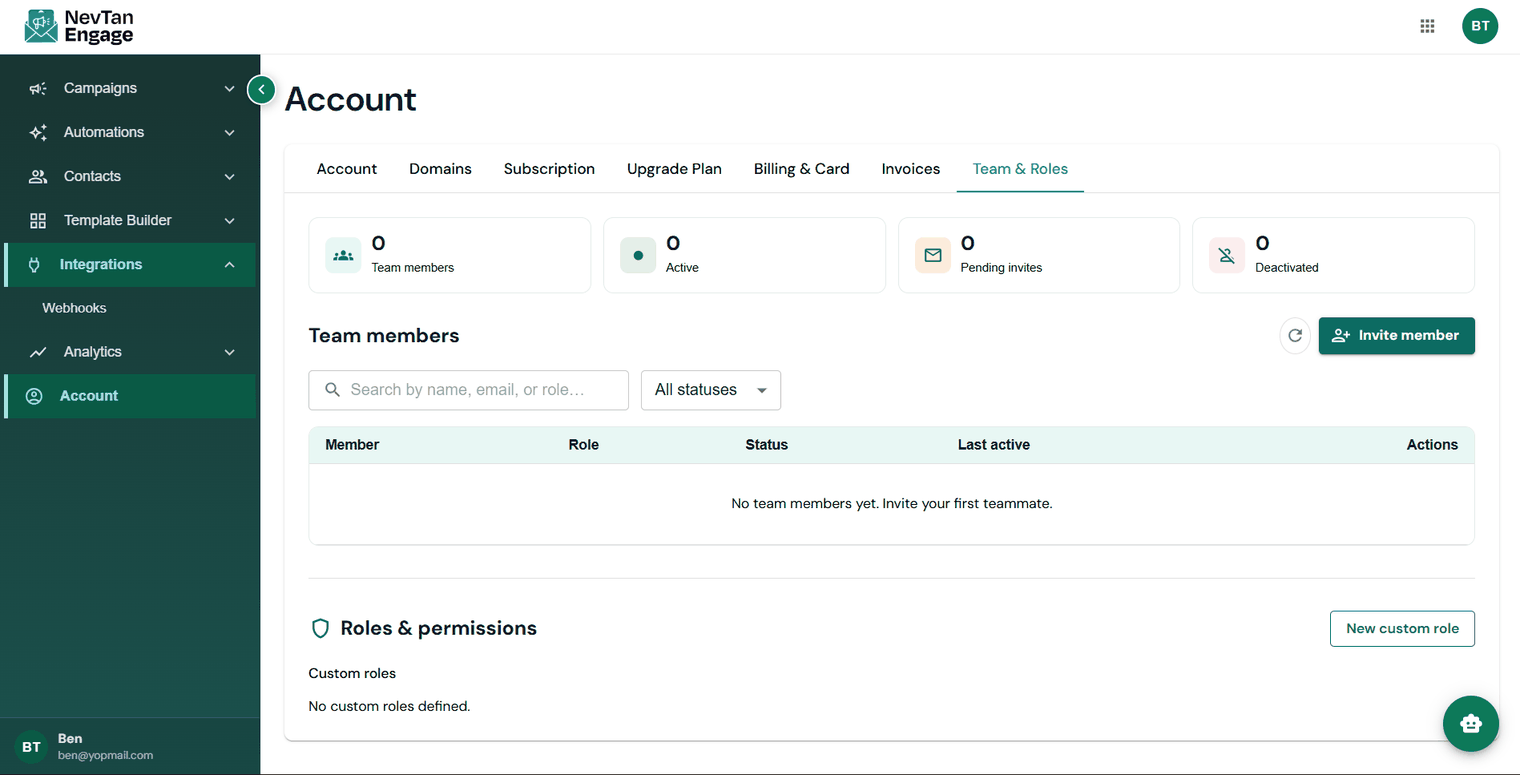
The Team & Roles tab

Your team and their permissions

The team table lists each Member, Role, Status, Last active, and Actions, and you can filter by status to find pending or deactivated members.

Roles & permissions

Under Roles & permissions you can create a New custom role — defining exactly which parts of Engage that role can reach — and assign it to team members.

💡

Apply least privilege: give each person the narrowest role that lets them do their job. Not everyone needs to send campaigns or change billing.

Previous

Billing, usage & invoices

Next

Admin overview

Still need a hand?

Our support team usually replies within one business day.

Contact support

On this page

  • Overview
  • Invite a teammate
  • Roles & permissions