
Documentation/Contacts
Segments
Dynamic groups defined by rules, which update themselves.
A segment is a group defined by rules rather than by hand. Membership updates automatically as people start or stop matching — "contacts added in the last 30 days", "engaged subscribers", "customers who haven't purchased in 90 days".
Lists vs segments
Both group contacts, but they're maintained in opposite ways. Pick whichever matches how the group is defined.
| List | Segment | |
|---|---|---|
| Membership | Static — whoever you put in it | Dynamic — whoever matches the rules right now |
| How people join | You add them, or a CSV import does | Automatically, when they start matching |
| How people leave | You remove them | Automatically, when they stop matching |
| Defined by | A name | A name plus one or more conditions |
| Use it when | The group is a fixed set you curate — a newsletter sign-up list, an event roster | The group is a description — "still subscribed", "bought in the last 90 days" |
See Lists for the static side. A campaign can target both at once — Engage de-duplicates, so nobody gets the message twice.
The Segments page
Open Contacts → Segments. Every segment you've built is listed with:
| Column | What it shows |
|---|---|
| Segment | The name, and a description underneath it if one is set |
| Definition | A View definition button that opens the rules written out in plain English |
| Members | The current member count — click it to see the matching profiles |
| Last updated | When the segment or its count was last updated |
| Actions | A ⋮ menu: View definition, View profiles, Edit, Delete |
Search segments filters the table by name. Two buttons sit at the top right: Event Catalog and New segment.

Your segments
Create a segment
Open Contacts → Segments
Click New segment. The builder opens.
Name it
Name is required — a segment won't save without one. Make it descriptive: "Subscribed, no opens in 90 days" beats "Segment 4".
Add a condition
Click Add condition, then choose a category from the Select a condition dropdown. A new segment starts with no conditions at all.
Fill in the condition
Each category shows its own controls — see What you can build rules from below.
Add more conditions if you need them
Add condition again for each one. Once you have two or more, a Match toggle appears — ALL (AND) or ANY (OR). Each condition also has a duplicate control (handy for near-identical rules) and a delete control.
Check the count, then save
The profile count at the top updates as you build. Click Create segment when it looks right.

Two conditions, combined with ALL (AND)
What you can build rules from
Every condition starts by picking one of two categories:
| Category | What it matches | Controls |
|---|---|---|
| Marketing consent | Subscription and channel status | Contact can receive / cannot receive · email marketing / SMS marketing · with status Subscribed / Not subscribed |
| Activity & events | Something the contact did | Contact did / did not do · *an event* · at least once / at least / at most / exactly *n* · in the last *n* days / over all time |
A Marketing consent condition can also carry a date qualifier. Click + subscribe date and it adds *subscribed in the last n days*.
Event windows are measured in days only, and default to the last 30 days. The subscribe-date qualifier defaults to 15 days.
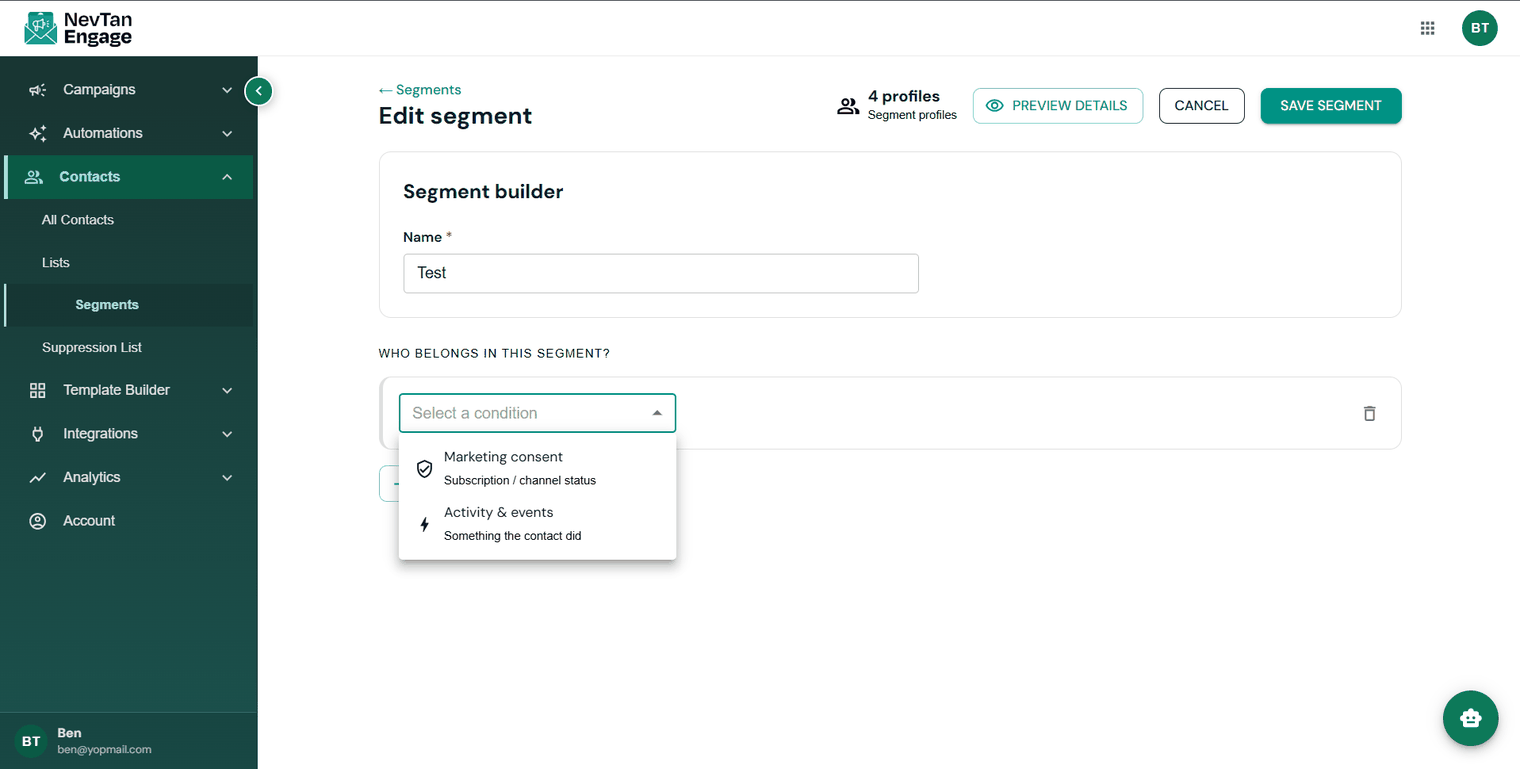
The two condition categories
Where the event list comes from
The events in the dropdown aren't a fixed list — Engage loads them from your account's event catalog, scoped to the industries you picked during setup. Two accounts in different industries see different events.
To see everything available to you, click Event Catalog on the Segments page. It shows a searchable list of your events with a total count, grouped by category, plus an Industries tab controlling which industries are in scope and a Sending events tab with the API details for sending your own. You can also add one with New event.

The activities you can segment on
If the event dropdown says No events for your industries yet, your catalog is empty — open the Event Catalog and add events, or check your industry selection, before building activity rules.
AND vs OR
AND narrows — every condition must be true. OR widens — any one condition is enough. If a segment returns far more or far fewer people than you expected, this is almost always why.
The Match toggle only appears once you have two or more complete conditions — with a single rule there's nothing to combine.
Checking who matches, before you save
You don't have to save to find out who a segment catches. The builder keeps a live count in the header — _n_ profiles, under the label *Segment profiles* — and it recalculates about half a second after every change you make.
Click that count, or Preview details, to open Matching profiles: the full matching set, paginated, with a search box for name, email or phone. Click any row to see that profile.
Underneath the conditions, a Segment definition panel writes your rules out as sentences — *Contact did "Placed order" at least 3 times in the last 90 days* — so you can sanity-check the logic without reading the controls.

Preview the matching profiles before saving
If the count is 0 or implausibly large, check the Match toggle first, then the time window. Those two account for most surprises.
If the count reads Preview unavailable, the preview request didn't come back. Your rules are still intact — adjust a condition to retry.
Worked examples
Four segments you can build with the categories above. Event names come from your own catalog, so substitute the equivalent event in yours.
| Segment | How to build it |
|---|---|
| Mailable email subscribers | One condition — Marketing consent: *can receive* · *email marketing* · status *Subscribed* |
| Recently subscribed | Marketing consent: *can receive* · *email marketing* · *Subscribed*, then + subscribe date → *subscribed in the last 30 days* |
| Repeat buyers | Activity & events: Contact *did* your order event *at least* 2 times *in the last* 90 days |
| Subscribed but gone quiet | Two conditions with ALL (AND) — Marketing consent: *can receive* · *email marketing* · *Subscribed*; and Activity & events: Contact *did not do* your open event *at least once* *in the last* 90 days |
The last one is the highest-value segment most teams build, in both directions: mail the engaged group to lift open rates, and treat the quiet group as a win-back audience rather than mailing it at the same frequency.
Viewing a segment
Click a segment's member count, or choose View profiles from its ⋮ menu. The Matching profiles dialog lists each member's Profile, Email, and whether they're Subscribed, with a search box and pagination up to 100 per page. Click any row for that person's details.
View definition opens the rules as plain-English sentences, with an Edit button to jump straight into the builder.
Editing and deleting
Choose Edit from the ⋮ menu (or from the definition dialog) to reopen the segment in the builder with its rules loaded. Change anything, watch the live count update, then click Save segment.
Because membership is derived from the rules rather than stored per person, changing a rule changes who's in the segment — there's no separate recalculation step and nothing to re-run.
Delete asks you to confirm first. Deleting a segment doesn't touch the contacts in it.
Deleting a segment is permanent. Profiles are unaffected, but any campaign or automation using that segment loses this audience — so check where it's used before removing it.

Deleting a segment doesn't delete its contacts
Using a segment
Segments can be the audience for a campaign or a filter inside an automated flow. A flow can also use Audience Segment as its trigger, enrolling contacts as they start matching — see Custom flows.
Segmentation requires a Standard plan or above.